Raz-Kids Teacher Tutorial
If you need assistance with the Raz-Kids platform, here’s a tutorial to guide you through the features and functionalities available to teachers.
1.Use Raz Kids on different devices
The following screenshot shows how to use on the computer. The mobile application and Pad use are similar. Teachers and students use the same website or App, but the teacher clicks Teacher Login and the students click Kids Login. Then teachers and students have different permissions and functions.
1.1 Download Razkids app on iPhone
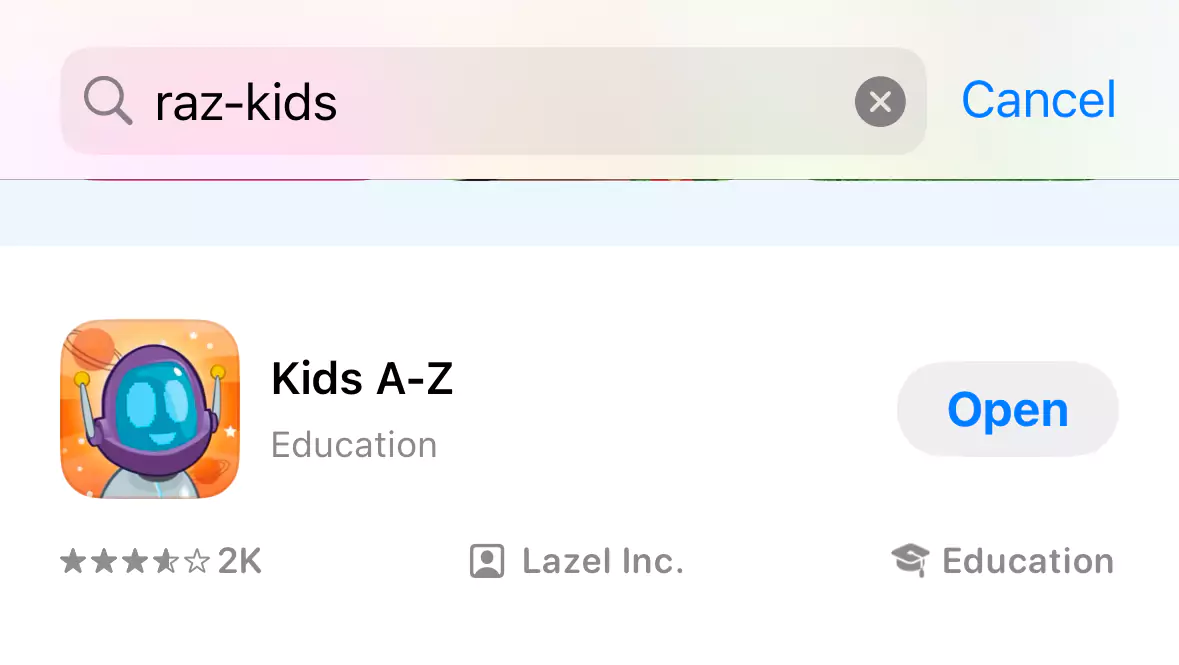
Download Razkids directly from the app store on iPhone and log in using the teacher account we provided.
1.2 Download the Razkids app for Android phones
Android phones have Google Play installed and can be directly searched and installed;
If Google Play isn’t installed, click on the following link: https://studyisland.cn/razkids-download-for-android to download. Users in mainland China can’t download it from the Play Store, so you’ll need to use the provided link. Once the download is complete, you can use the app as usual. Make sure to download the latest version from the top version installation package.
1.3 Downloading the Raz-Kids App on iPad or Other Tablets
The method for downloading the Raz-Kids app on an iPad or other tablets is similar to the one mentioned above.
1.4 Using Raz-Kids Plus on a Computer (PC)
To use Raz-Kids Plus on a computer, simply click on any of the following links:
This will direct you to the PC version of Raz-Kids.
2. Login
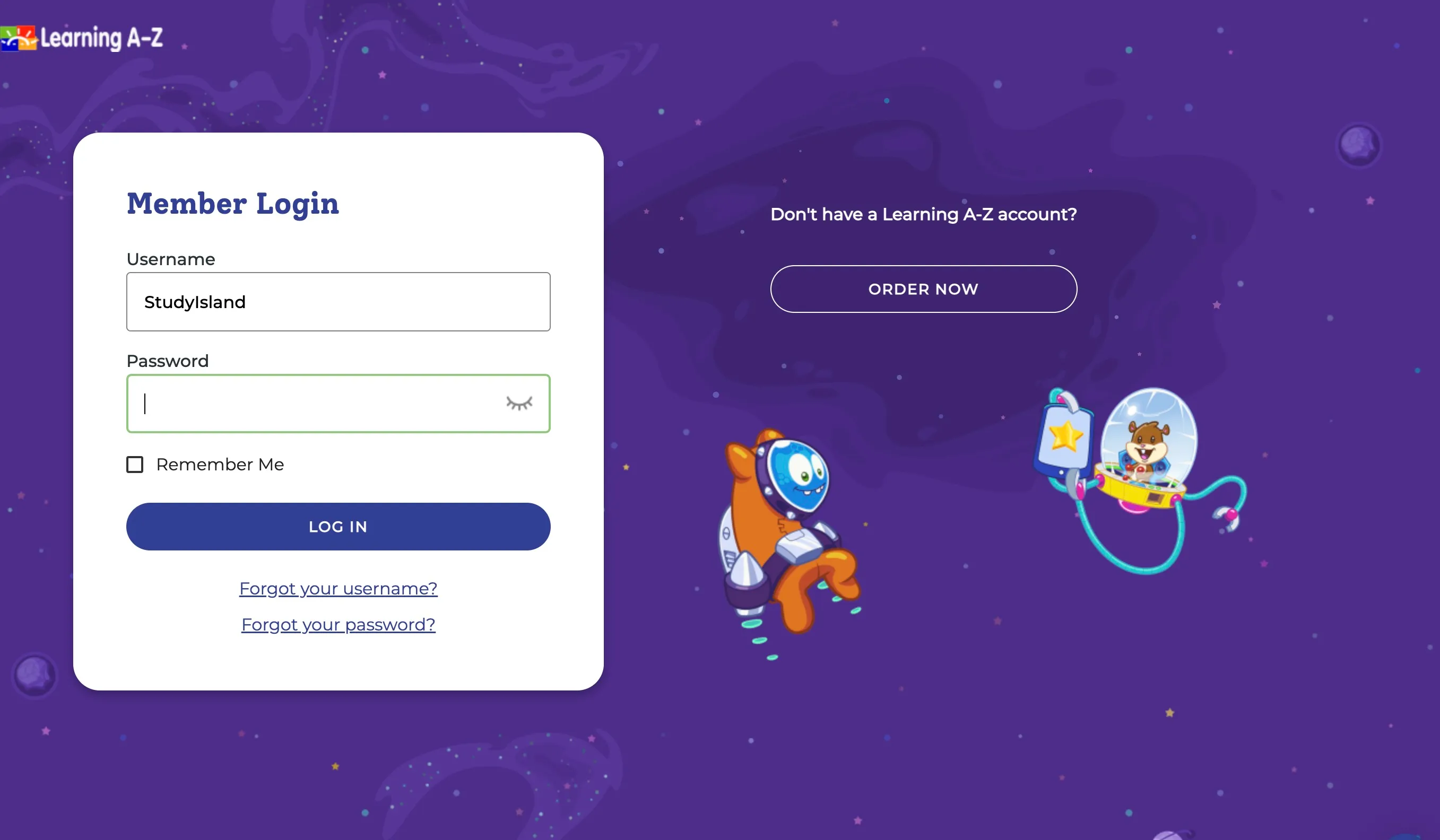
Open the official Raz-Kids website or app, and log in using the teacher account and password provided by StudyIsland.

3. Adding Students
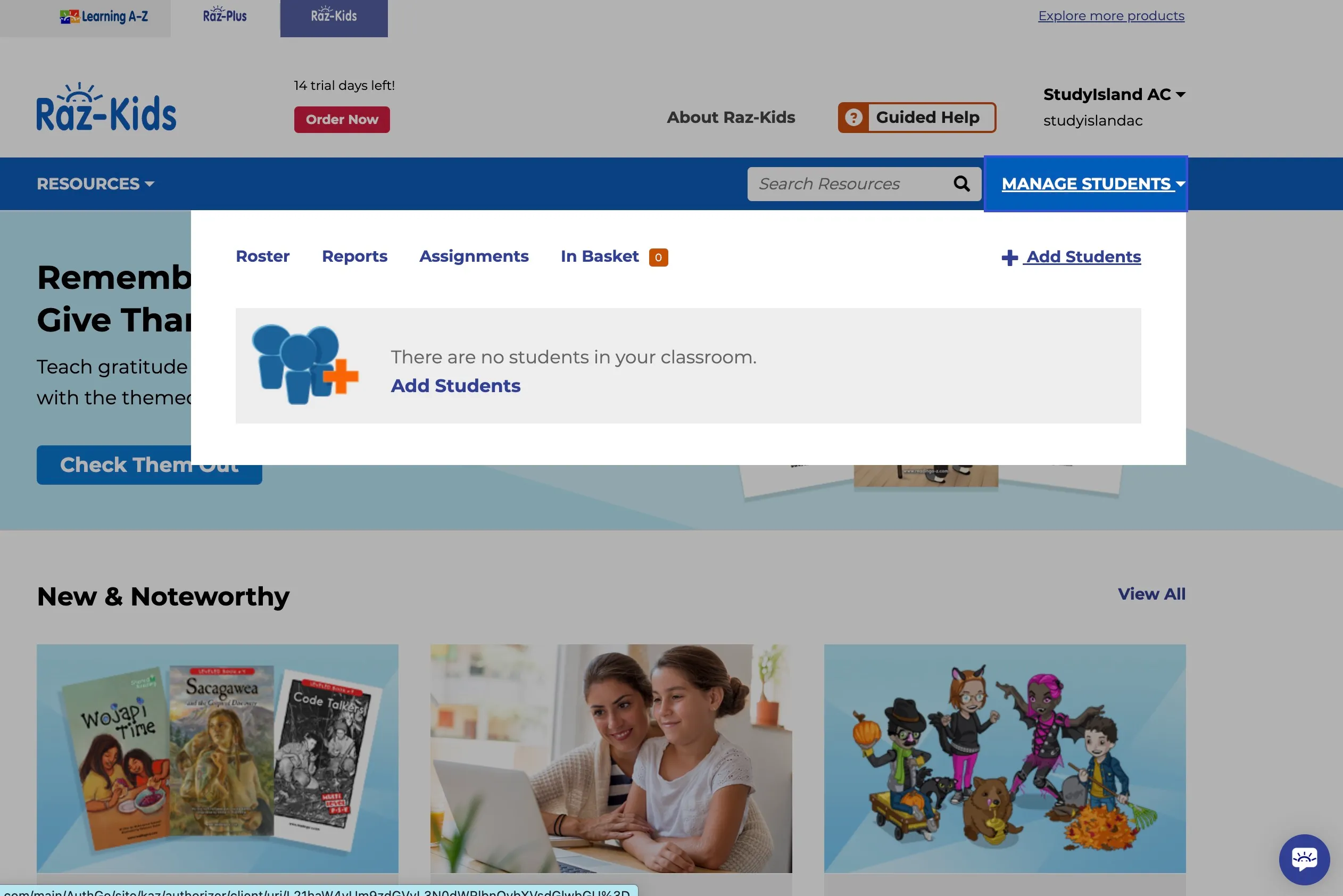
Once you’ve successfully logged in, you can input students’ information. This includes their names, passwords, and the assigned learning level, ranging from aa to z2.
Click on “Add Students.”
Enter the student name, the following demonstration example is study
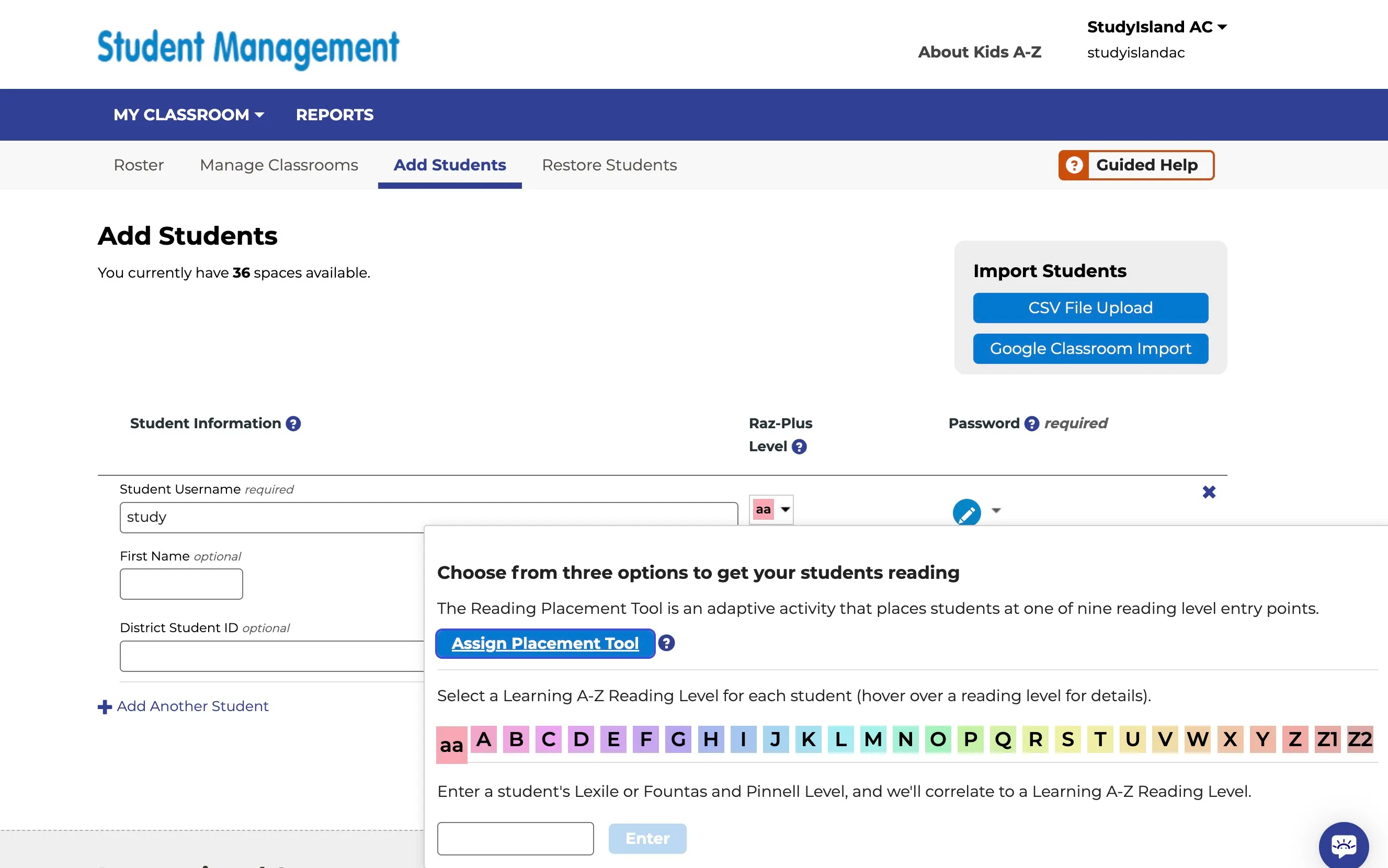
Click on the right side under “Raz Kids Level” to choose the level, starting from aa (select based on the child’s proficiency). Alternatively, you can choose “Assign Placement Tool.” This tool requires students to answer a series of questions, and the system will determine their level. However, please note that the questions might be challenging for kindergarten students, so it’s recommended to directly choose the level.
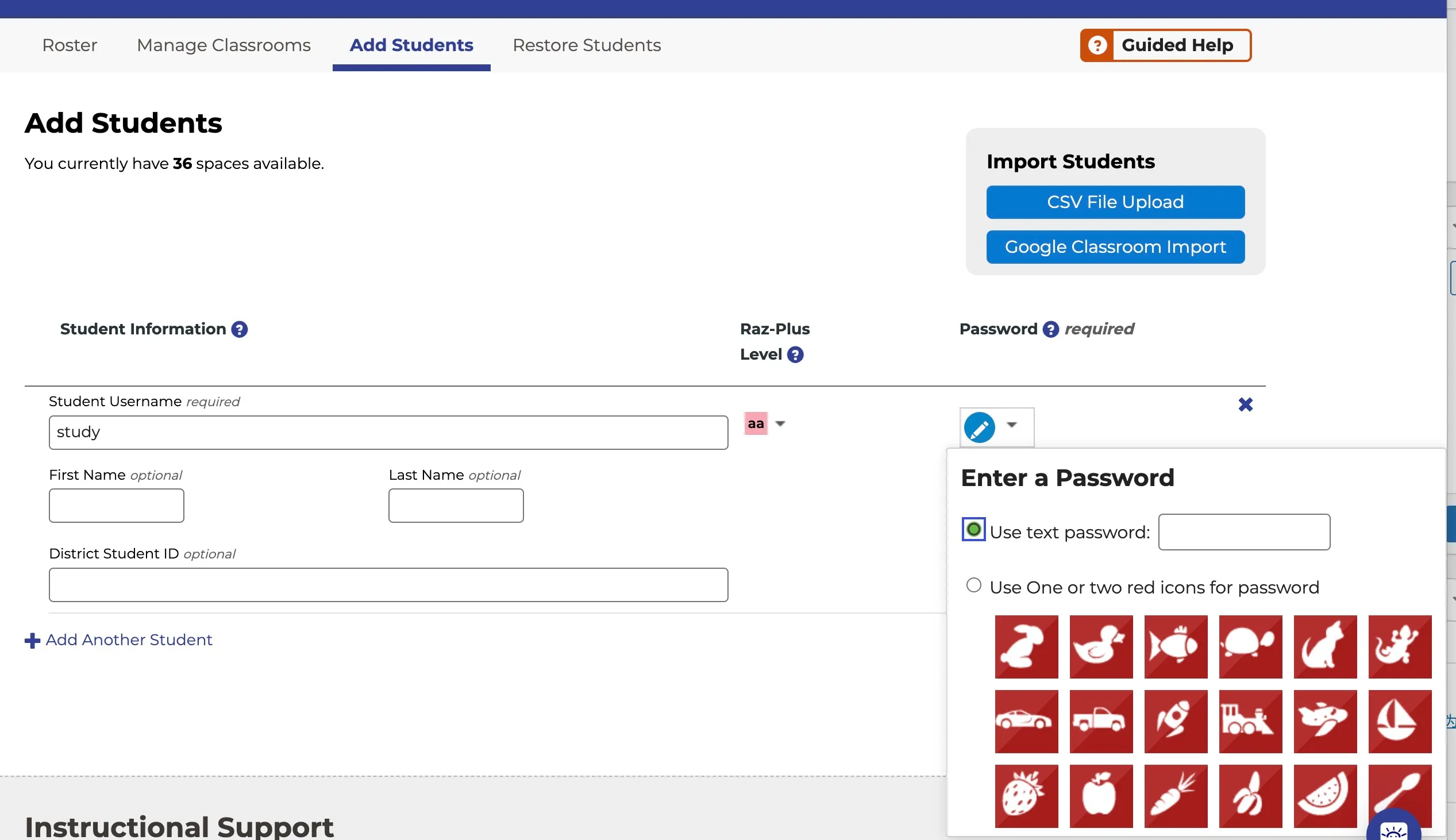
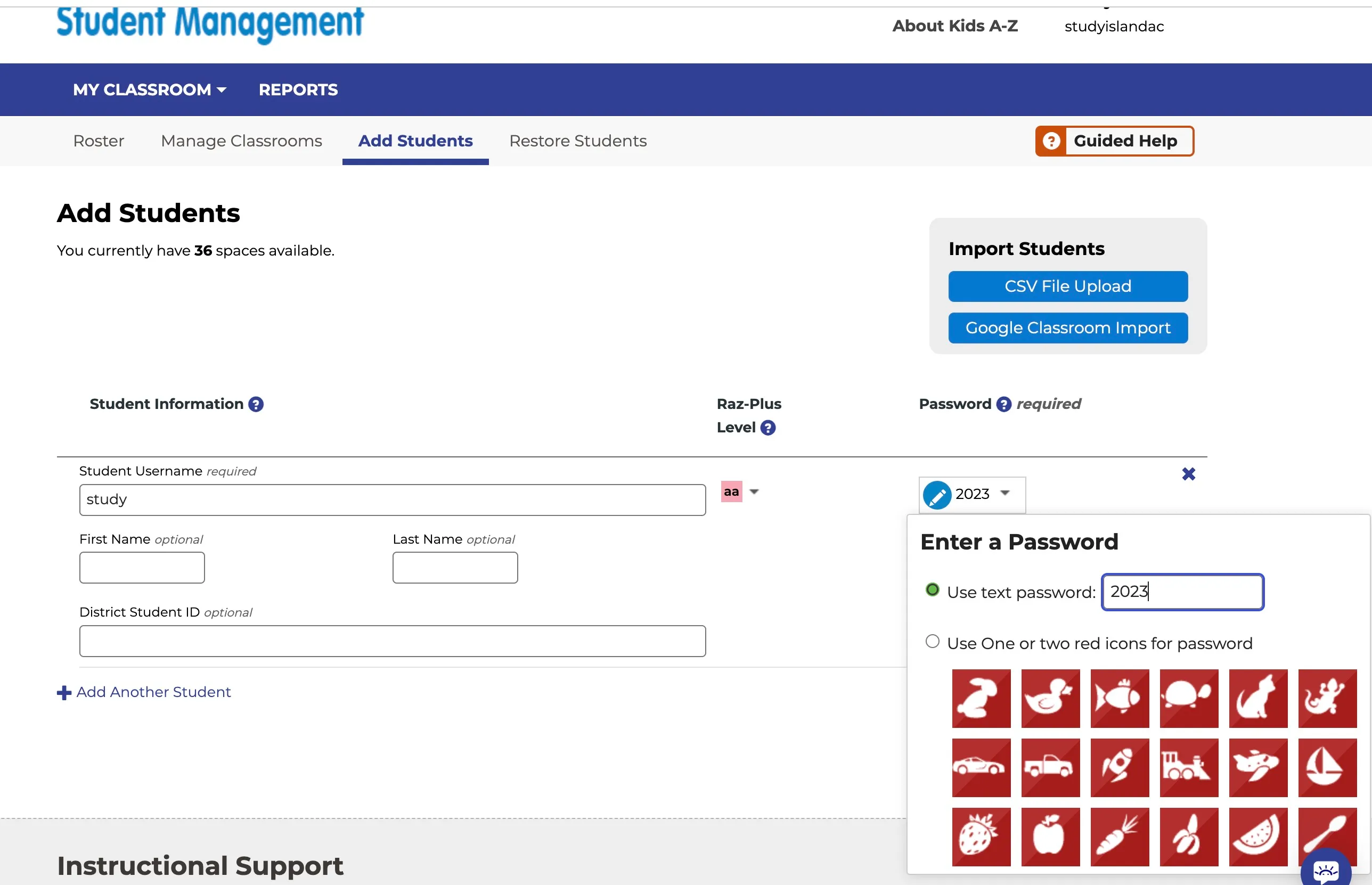
Enter student password, optional text password or image password
The following example password is 2023. When a student logs in, select the student account name study and enter the login password 2023 to study.
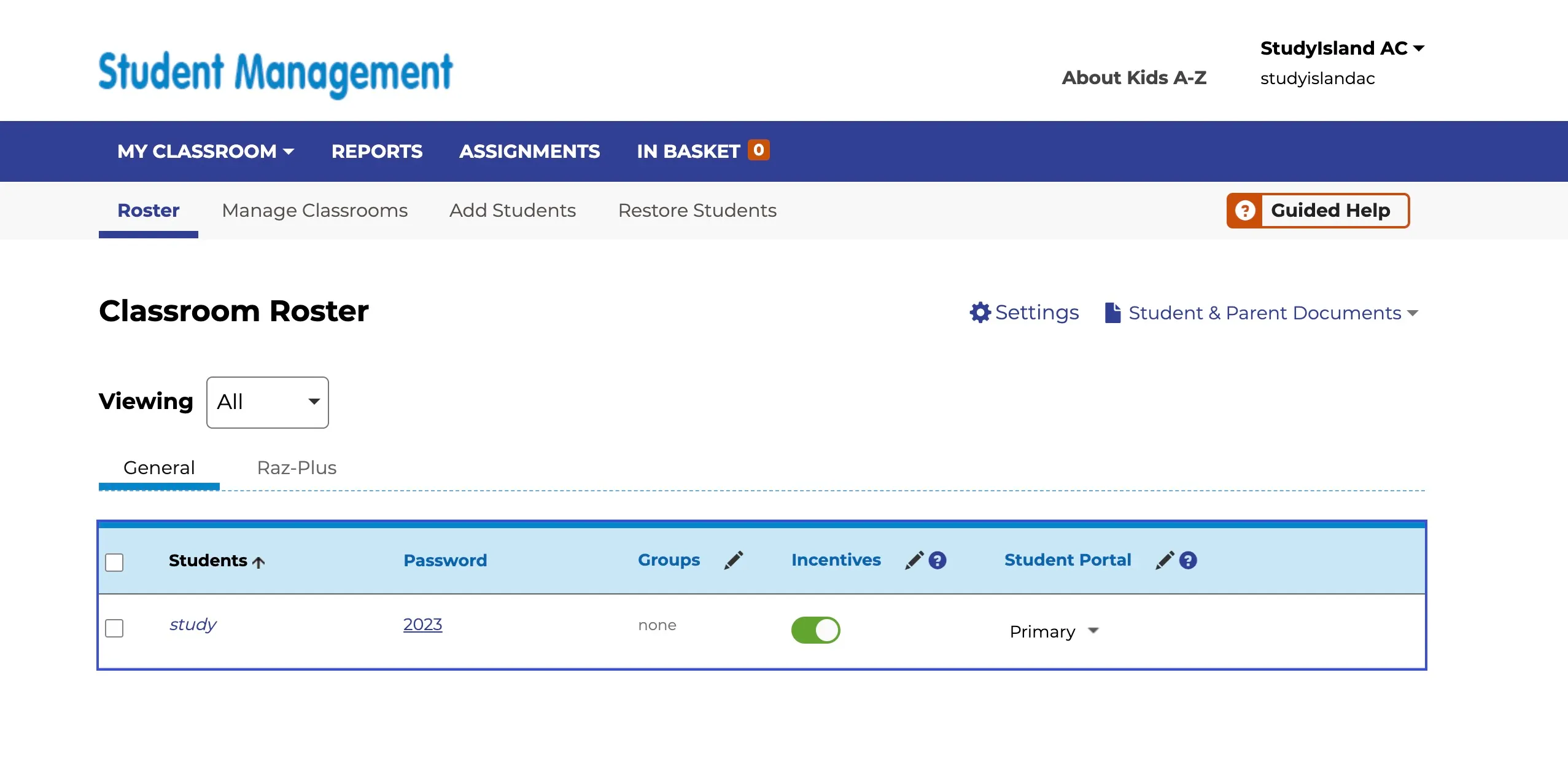
After the students are created, you can view all students in the class under Rooster.
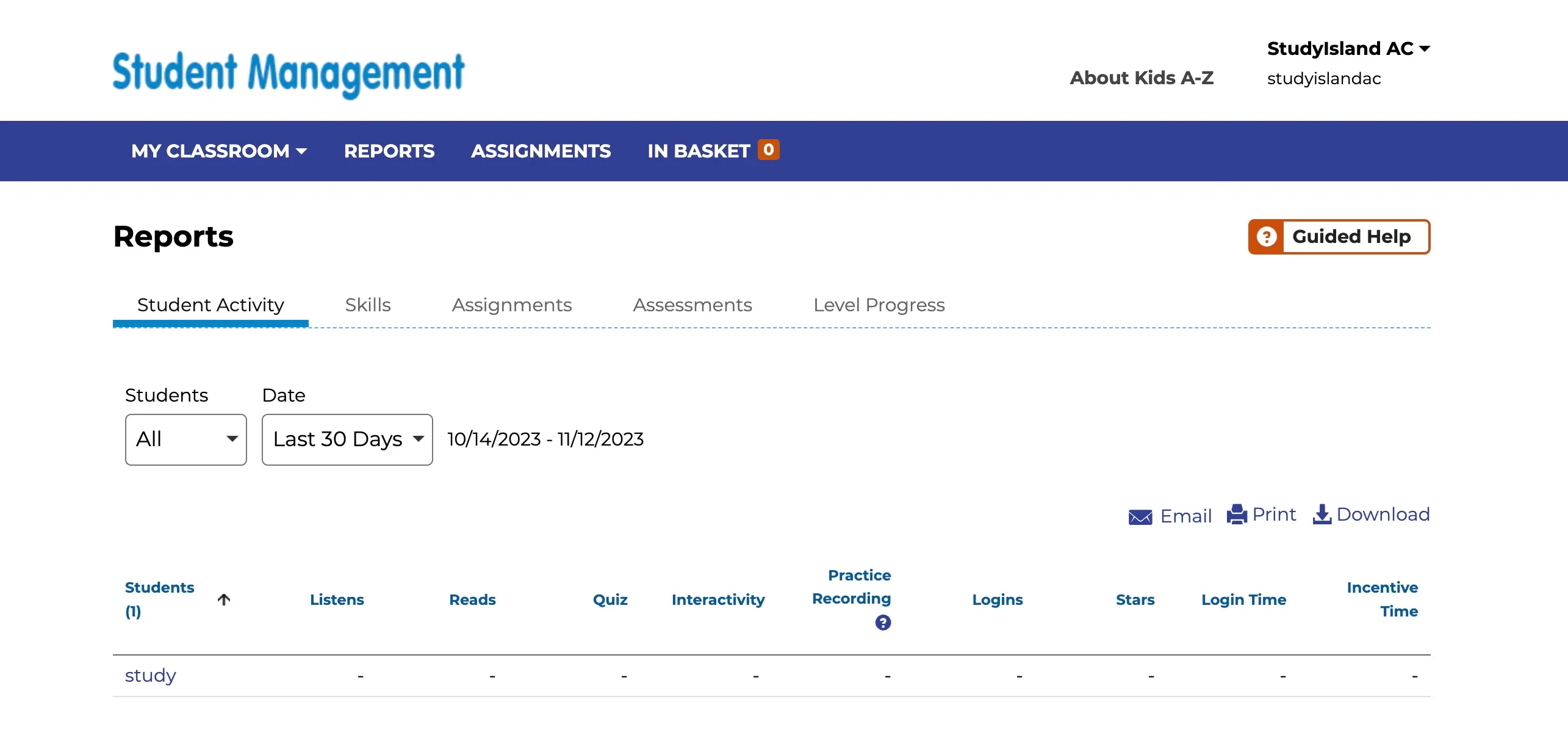
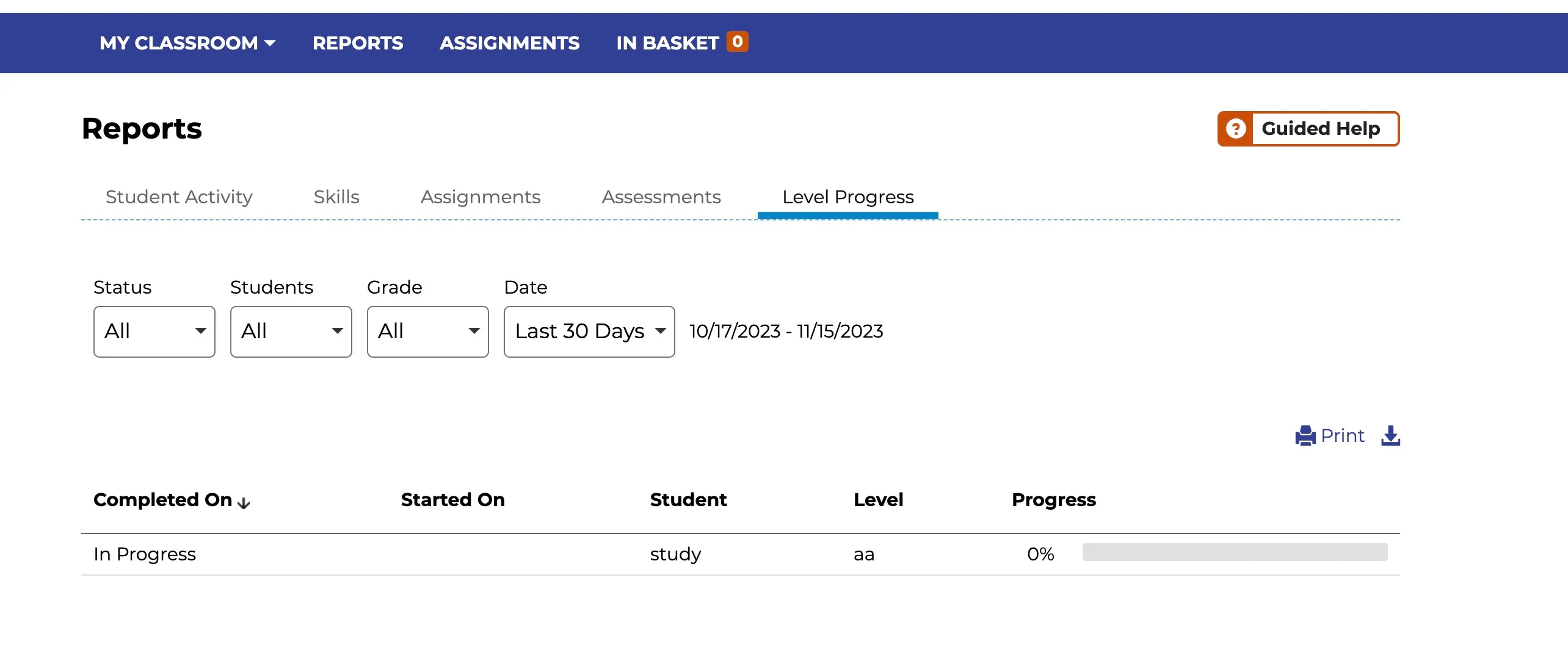
4. View student reading activity and progress on the Reports page.
Using your Raz-Kids teacher account, you should be able to monitor students’ progress, view completed tasks, and check their reading time.
Navigate to the “Reports” section in the menu to see detailed information about students’ reading activities.
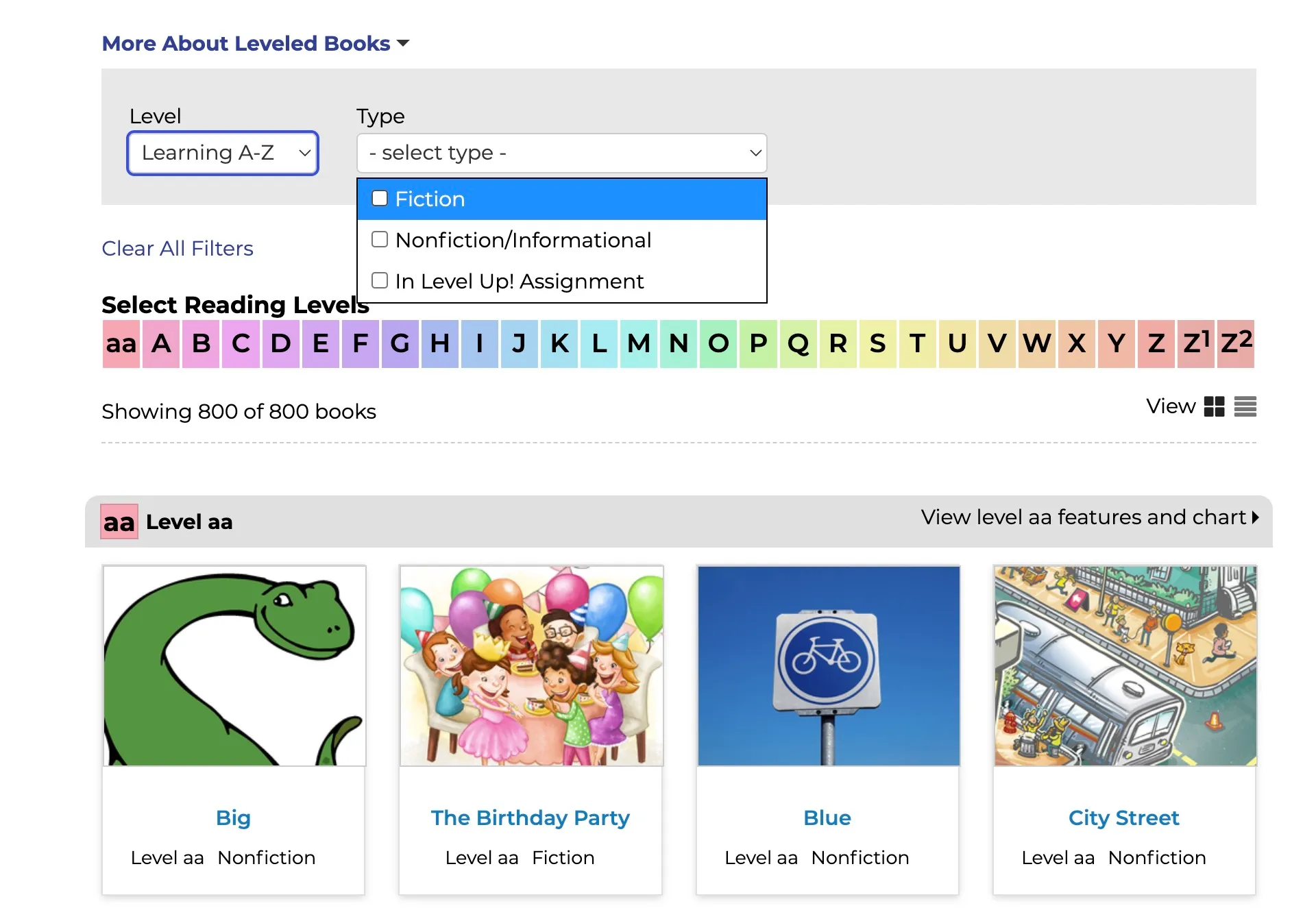
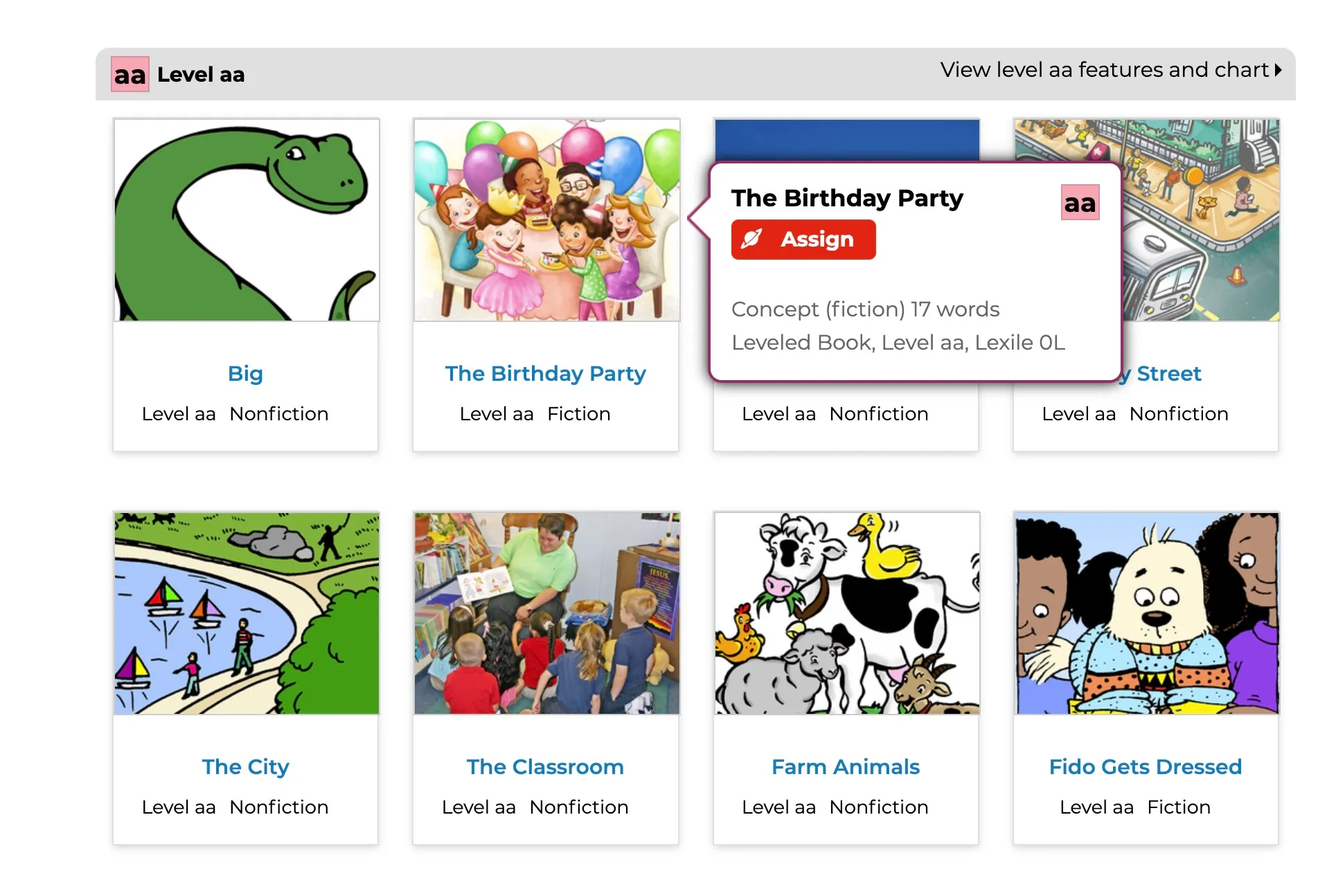
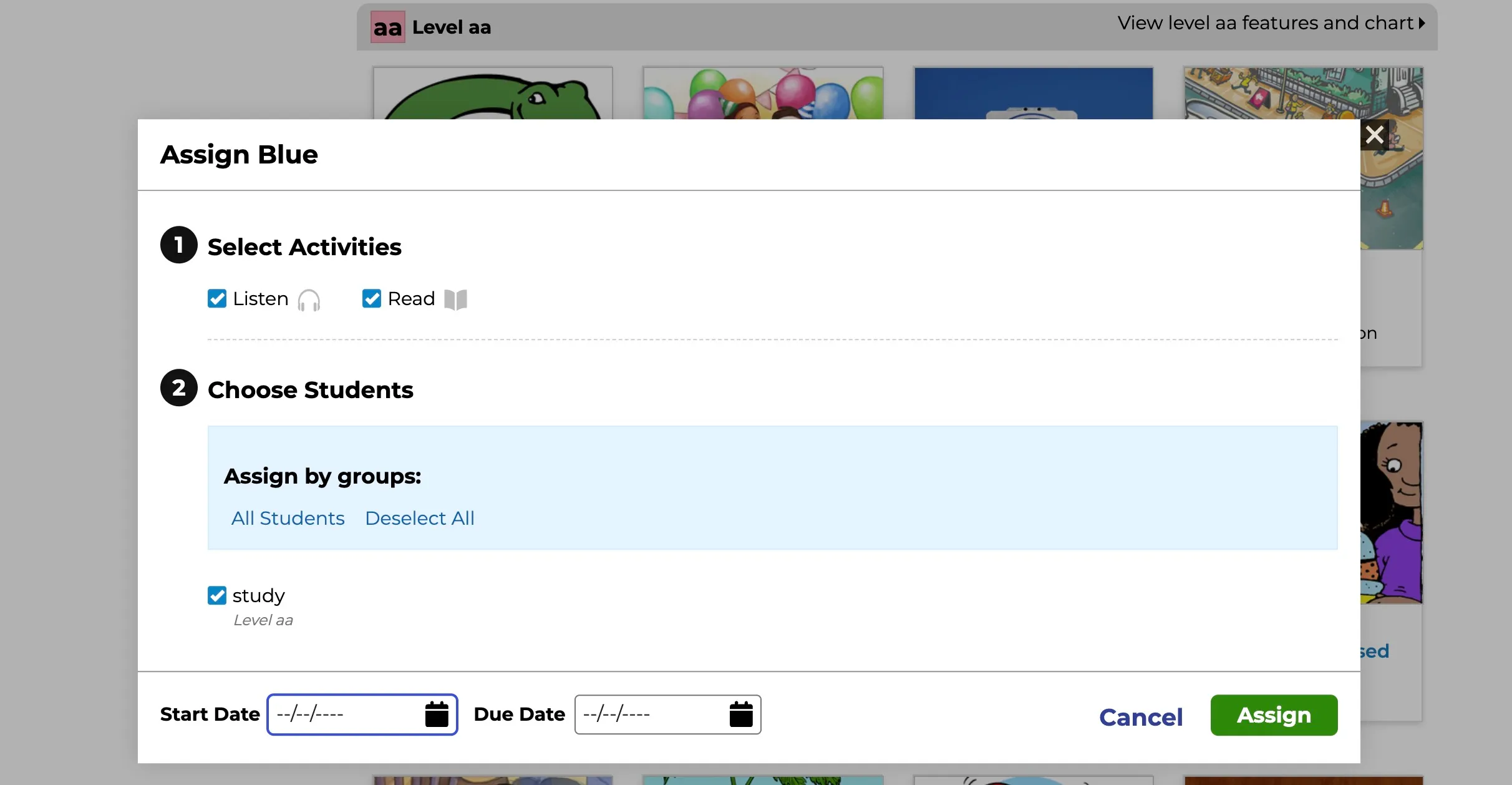
5. Assign homework to students
Click directly on the link https://www.razkids.com/main/RazQuizRoom/collectionId/4/leveledBookLanguageId/1
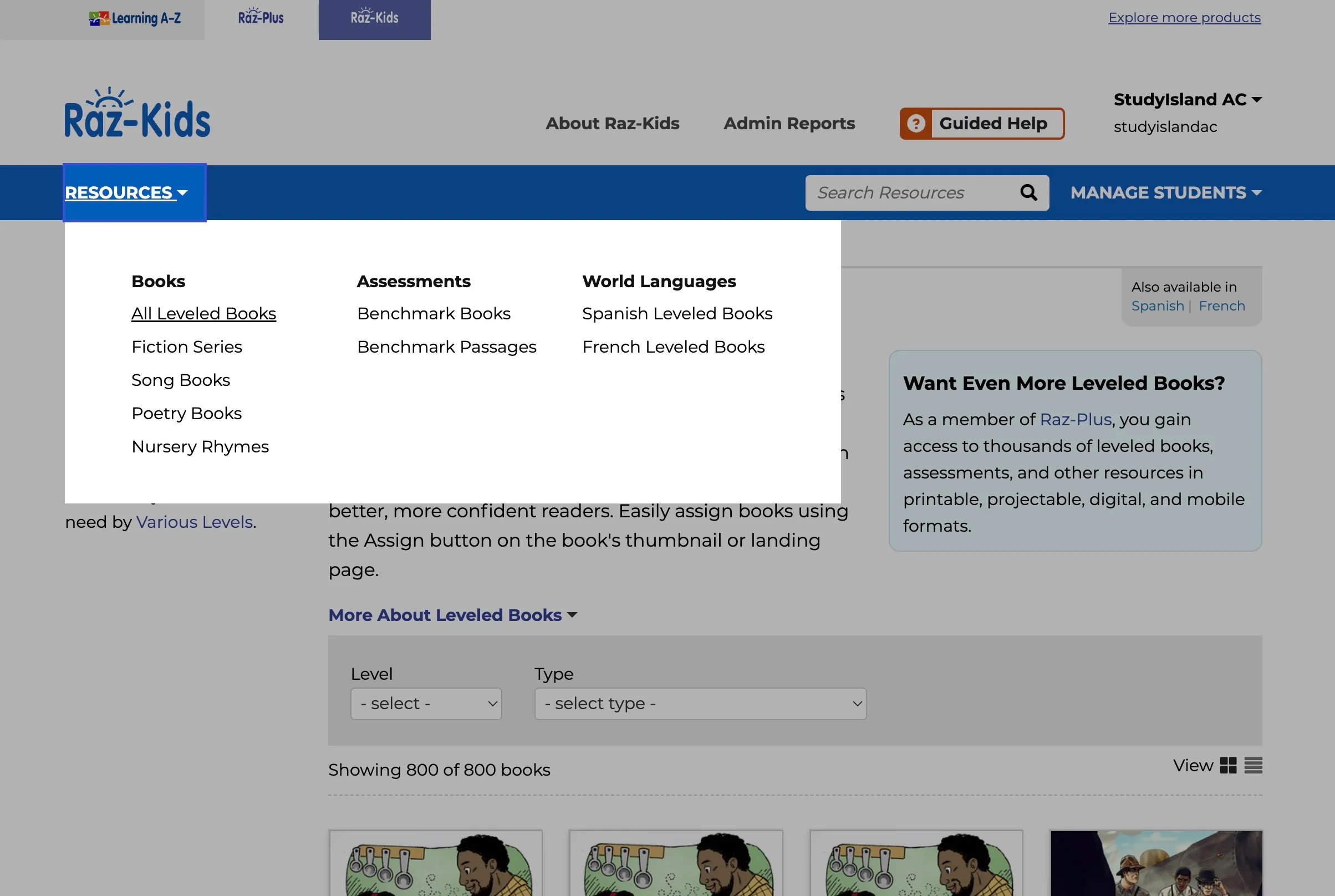
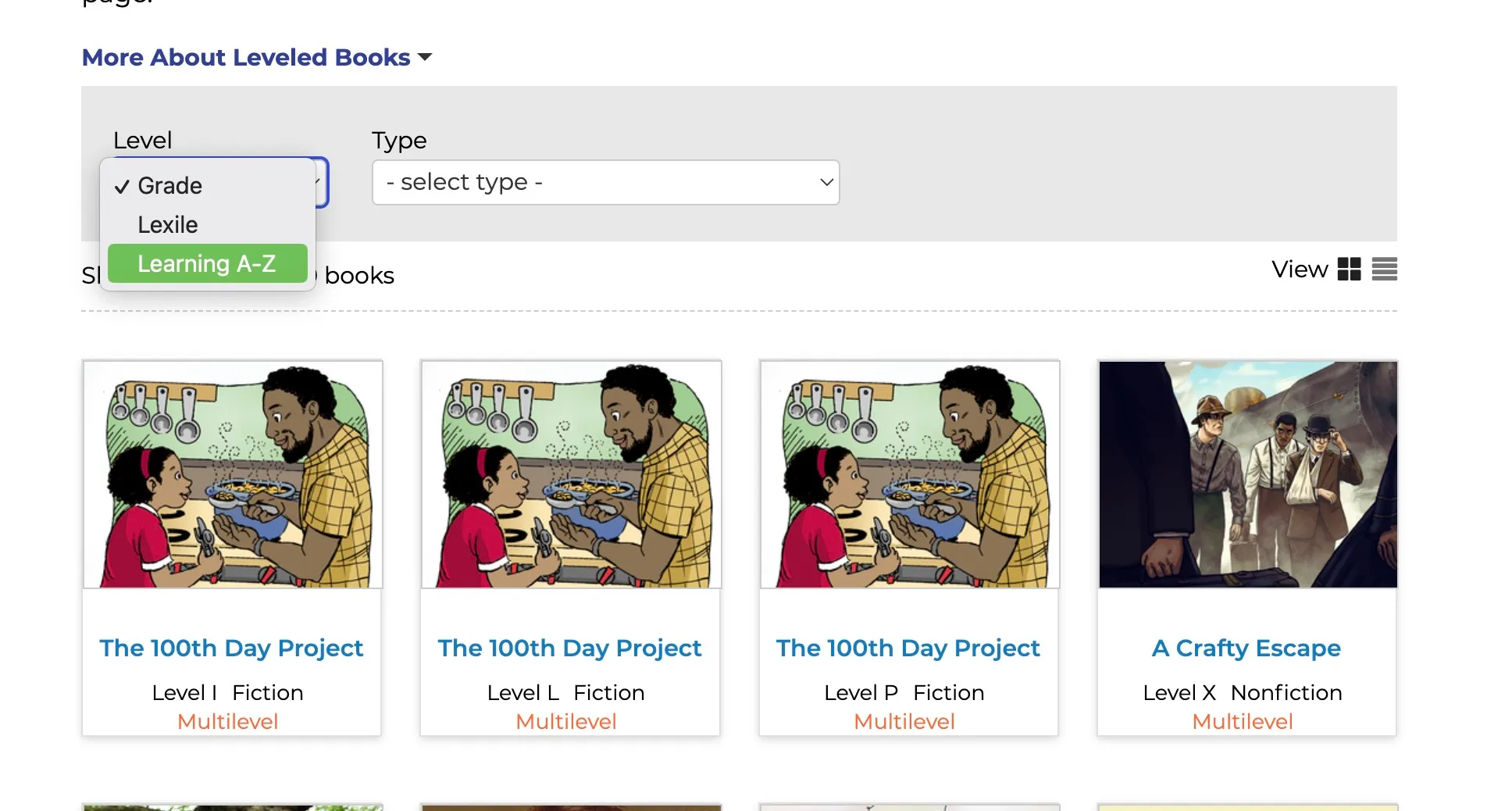
Or follow the screenshot below to find the appropriate book and assign homework to students.
Create custom assignments by searching for books by skill or topic. Click the orange Assign button to assign to an individual student, small group, or your whole class.
6. Student Account User Guide
6.1 Locate the student login section on the app or website. Enter the teacher account information
The following screenshots use the teacher account “studyisland” as an example. The website is: https://www.kidsa-z.com/main/Login.


6.2 Find the given student account and click on the student’s name

6.3 Enter student account password

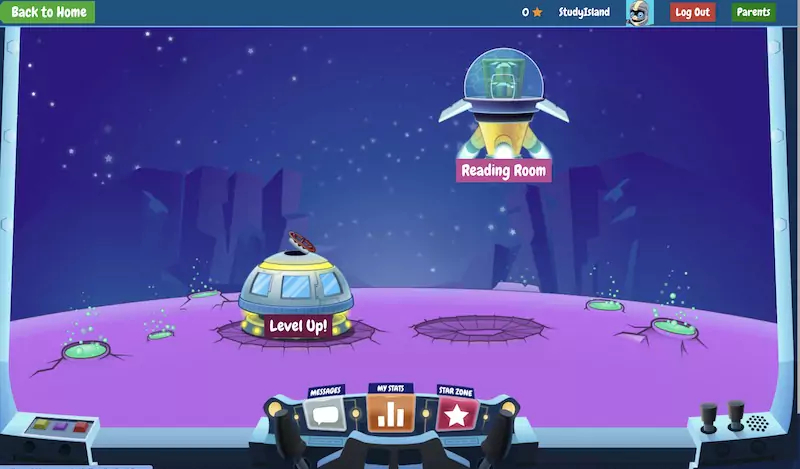
6.4 Students can enjoy reading!


6.5 How to Level Up?
To level up, complete all the listening, reading, and exercises inside the “Level Up” section. Your level will automatically advance once you’ve finished all the tasks.
© 版权声明
文章版权归作者所有,未经允许请勿转载。